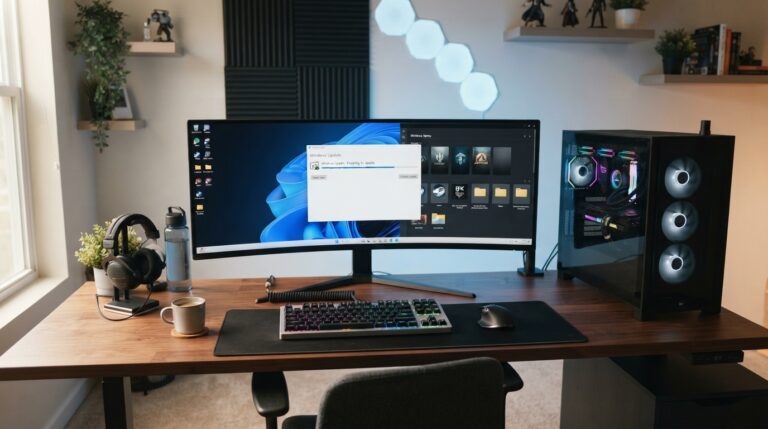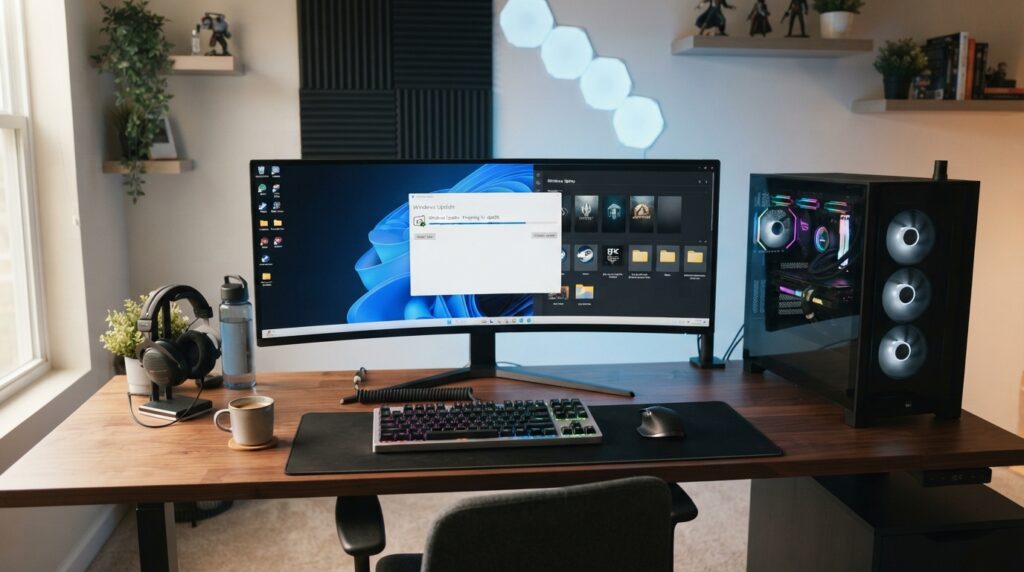
The Windows 11 gaming update conversation changed at the end of September 2026 when Microsoft released Windows 11 version 26H2.
For PC gamers, the timing matters. Windows 11 24H2 Home and Pro are reaching the end of support in October, which means many gaming PCs now have a practical reason to move to a newer Windows version even if their games currently run perfectly.
That does not mean 26H2 is a magic performance update.
Do not expect every game to gain more FPS simply because the version number changes. Microsoft describes 26H2 mainly as the latest annual Windows feature update, combining security, reliability, user-experience, and servicing improvements that have been rolling out over time.
The better question for gamers is whether updating now makes sense for stability, security, compatibility, and long-term support.
For most eligible systems, the answer will eventually be yes. The smarter approach is to upgrade carefully rather than treating a major Windows update like a graphics-driver hotfix that must be installed five minutes after release.
Why the Windows 11 Gaming Update Matters Now
Windows is part of the gaming stack even when players rarely think about it.
Your games depend on graphics drivers, audio drivers, networking, storage, DirectX components, anti-cheat software, launchers, controllers, RGB utilities, overlays, capture software, and other tools that interact with the operating system.
A supported Windows version continues receiving security and quality fixes that help keep that stack current.
That becomes especially relevant in October 2026 because Windows 11 24H2 Home and Pro are approaching the end of their normal support lifecycle.
Windows 11 24H2 Home and Pro Support Ends in October
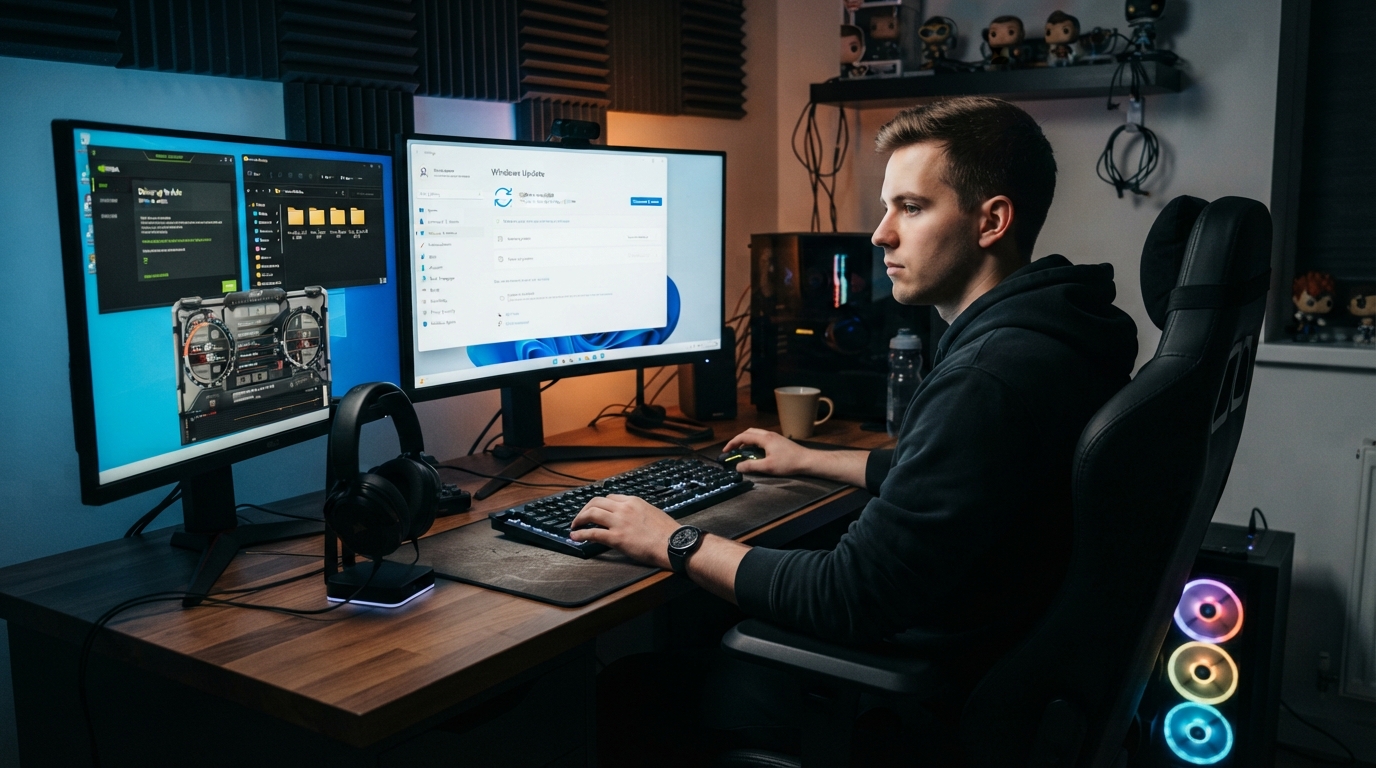
Microsoft lists October 13, 2026 as the final update date for Windows 11 version 24H2 Home and Pro editions.
After support ends, those editions stop receiving the normal monthly security and quality updates associated with an actively supported Windows release.
Enterprise and Education versions follow a different lifecycle, so gamers using a work or school machine should check the exact edition before assuming the same date applies.
Most home-built and retail gaming PCs, however, use Home or Pro.
End of Support Does Not Mean Games Instantly Stop Working
When Windows reaches end of support, your Steam library does not suddenly disappear.
A game that worked the day before may continue launching afterward. Your GPU does not become slower at midnight, and your controller does not automatically stop connecting.
The problem is longer term.
An unsupported operating system gradually falls behind on security fixes and platform updates. Driver vendors, game launchers, anti-cheat providers, and developers also tend to concentrate testing on supported Windows versions.
That can eventually create more compatibility problems.
The sensible gaming move is therefore not panic. It is planning.
If your 24H2 system is stable today, use the remaining time to update drivers, clean up storage, back up important files, and check whether 26H2 is officially offered to your PC.
Windows 11 26H2 Is a Lightweight Upgrade on Eligible PCs
Microsoft says Windows 11 26H2 uses the same servicing foundation as versions 25H2 and 24H2.
For eligible systems, Microsoft can deliver the update through a small enablement package instead of performing a traditional full operating-system replacement.
That should make the installation faster and less disruptive than some older Windows feature upgrades.
Microsoft is still rolling out 26H2 gradually. If the update does not appear on your PC immediately, that does not automatically mean something is wrong.
The company may hold the update on systems where it detects a compatibility issue.
Do not bypass a safeguard hold just because another gamer already received 26H2. Waiting for a compatibility issue to be resolved is usually better than creating a new problem on a gaming PC that already works.
Should PC Gamers Update to 26H2 Immediately?
If Windows Update officially offers 26H2 and your gaming PC is otherwise healthy, the upgrade is reasonable.
Still, there is little benefit in treating day-one installation like a competitive race.
Players with heavily customized systems may prefer to check community reports for a few days first.
This is especially relevant if you use unusual audio hardware, older controllers, capture cards, VR equipment, specialized racing hardware, custom RGB software, or several monitoring and overlay tools.
Those utilities often reach deeper into Windows than an ordinary game.
Check GPU Drivers, Anti-Cheat, Audio, and Peripherals First
Before installing the Windows 11 gaming update, update the drivers and software that matter most to your setup.
Start with your NVIDIA, AMD, or Intel graphics driver. Then check motherboard chipset drivers when appropriate.
Make sure your main game launchers are current. Update anti-cheat-dependent games before the Windows upgrade so they already have the newest supported components.
Audio deserves attention too. Gaming headsets, DACs, USB microphones, and multi-channel audio devices can sometimes expose compatibility problems after Windows updates.
Microsoft’s current 26H2 release-health page has listed a USB audio issue affecting some Audio Class 1.0 devices, although the company marked it as mitigated by late September.
That is exactly why release-health pages are useful. They show whether Microsoft is tracking known problems before you start blaming your GPU, game, or motherboard.
Performance expectations also need to stay realistic.
Windows version changes are not substitutes for graphics settings, GPU capability, or enough VRAM. If a modern game is struggling because the GPU cannot handle its textures or ray tracing settings, an operating-system update will not magically fix the hardware limit.
Our guide to AI upscaling, DLSS, FSR, and frame generation explains how graphics-side tools can make a much bigger difference to FPS than an ordinary Windows feature update.
How to Update Without Wrecking Your Gaming Setup
A good Windows upgrade should feel boring.
You install it, restart, verify the important hardware, launch a few games, and continue playing.
The easiest way to get that boring result is to prepare before clicking Download and Install.
Start by checking free storage space. Large game libraries can leave the system drive almost full, which makes Windows updates and temporary installation files harder to manage.
You do not need to uninstall your entire library. Just avoid beginning an operating-system upgrade with only a tiny amount of free space remaining.
Also finish pending Windows updates first and restart the system before installing 26H2.
Back Up, Benchmark, and Verify Before You Upgrade
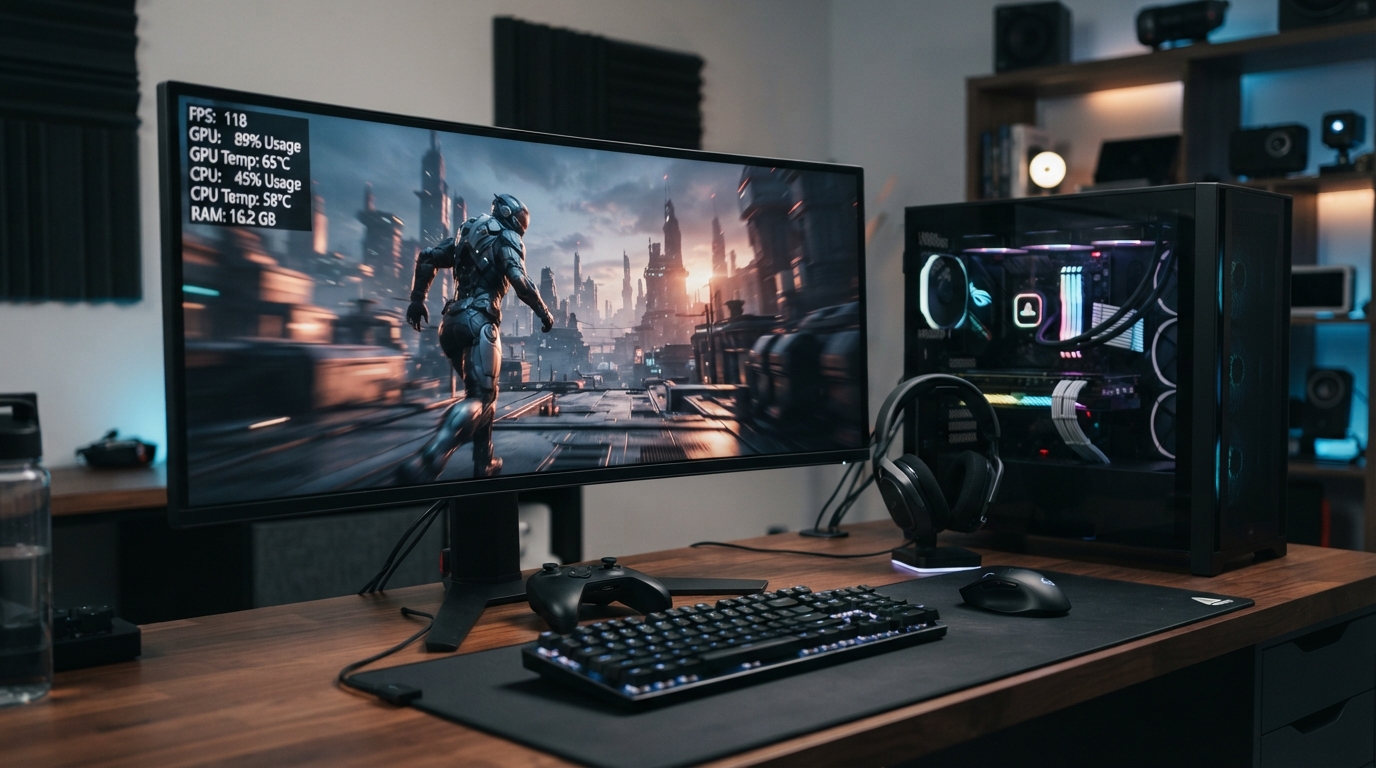
Back up important files before any major Windows version change.
Game saves are often synchronized through Steam Cloud, Xbox, or another launcher, but do not assume every game uses cloud saves.
Older titles, modded games, emulators, custom configuration files, screenshots, and locally stored saves may exist only on your drive.
If you have a heavily modded game, save the mod list and important configuration files too.
Next, create a quick performance baseline.
You do not need professional benchmarking software. Pick two or three games you know well and record basic numbers such as average FPS, GPU usage, CPU temperature, and idle memory usage.
This gives you something to compare after the update.
Without a baseline, players often install Windows, notice one small stutter, and immediately assume the update destroyed performance even though the game behaved the same way before.
Handheld PC owners should be especially careful because their systems combine Windows, vendor power profiles, controller layers, performance utilities, and mobile hardware in one device.
Our handheld gaming PC guide for 2026 explains why software experience and power management can matter just as much as raw hardware on portable systems.
Use a Simple Post-Update Gaming Checklist
After 26H2 installs, do not immediately start changing ten settings at once.
Restart the computer once more, then check Windows Update for any additional patches.
Confirm that the GPU driver loaded correctly. Open Device Manager and look for unexpected warning symbols.
Test your audio output and microphone. Connect the controllers, steering wheel, VR headset, capture device, or other gaming hardware you normally use.
Then launch the same games you tested before the upgrade.
Compare FPS and frame pacing. Check whether overlays work. Make sure anti-cheat games launch normally. Verify that cloud saves synchronize and that your controller mappings still make sense.
If performance suddenly drops, avoid random registry tweaks from old YouTube videos.
Start with simple troubleshooting. Restart the PC. Confirm the graphics driver. Check whether Windows installed a different driver automatically. Verify the game’s shader cache. Disable one overlay at a time if stuttering appears.
Windows 11 gaming update
Also check Microsoft’s release-health page before spending hours reinstalling software. A known Windows issue may already explain the behavior.
For gamers still on 24H2, the important takeaway is that October 2026 is a support deadline, not an FPS deadline.
You do not need to expect better gaming performance simply because you install 26H2.
You should upgrade because staying on a supported Windows release gives your gaming system a better foundation for future security fixes, drivers, launchers, anti-cheat updates, and new games.
The Windows 11 gaming update is therefore less exciting than a new graphics card, but it may be more important to the long-term health of your PC.
If 26H2 is officially offered to your system, prepare first, install it normally, and verify the setup afterward.
If Microsoft has placed a compatibility hold on your device, wait rather than forcing the update.
You can check the official rollout details and installation guidance on Microsoft’s Windows 11 2026 Update announcement.
The best gaming PC is not the one with the newest version number on day one. It is the one that stays secure, stable, compatible, and ready when you actually want to play.