The problem is that players often treat upscaling like a simple “free FPS” button. It is not that simple. Upscaling can improve performance, but image quality depends on the game, resolution, preset, hardware, motion, sharpening, and implementation. Frame generation can make motion look smoother, but it does not always improve input response. In competitive games, the wrong settings can even make the experience feel worse.
This Progz guide explains AI upscaling in plain English. We will cover DLSS, FSR, XeSS, frame generation, latency, image quality, and when players should use each setting. For more performance guides, read our posts on best PC settings to boost FPS, handheld gaming in 2026, and our gaming gear upgrade guide.
What AI Upscaling Actually Does
AI upscaling and modern temporal upscaling are designed to solve a simple problem: games are expensive to render at high resolution. A game running at native 4K has to draw a huge number of pixels every frame. That takes GPU power. Upscaling reduces the internal rendering resolution, then reconstructs the final image to look closer to the target resolution.
For example, a game may display at 1440p or 4K while internally rendering fewer pixels. The upscaler uses information from current frames, past frames, motion vectors, depth data, and sometimes AI models to create the final image. If the implementation is good, the player gets higher FPS with only a small loss in quality. In some cases, the image can even look cleaner than native rendering with weak anti-aliasing.
NVIDIA describes DLSS as a suite of neural rendering technologies that uses AI to boost FPS, reduce latency, and improve image quality. DLSS 4 adds Multi Frame Generation for GeForce RTX 50 Series GPUs and uses AI to generate additional frames between rendered frames. AMD’s FSR 3 adds frame generation to upscaling, and FSR 3.1 allows frame generation to work with any upscaling technology in supported games.
DLSS, FSR, and XeSS are not the same thing
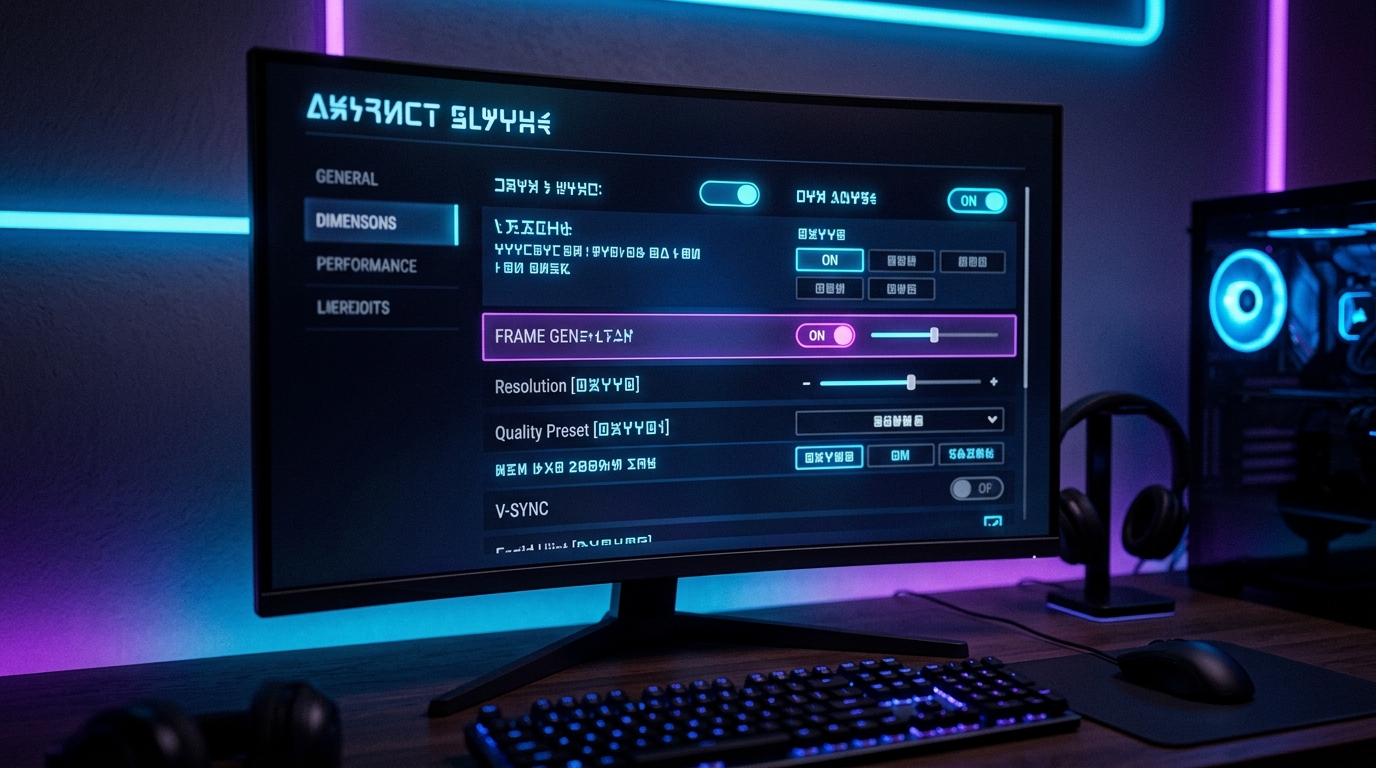
DLSS, FSR, and XeSS all aim to improve performance and image quality, but they are not identical. DLSS is NVIDIA’s technology and depends heavily on RTX hardware features. FSR is AMD’s technology and is designed to work across a wider range of GPUs. XeSS is Intel’s upscaling technology and has continued to expand with super resolution, frame generation, and latency-focused features.
Players should not judge these technologies only by brand. The real question is how well each one works in the specific game you are playing. One game may have excellent DLSS implementation, another may look better with FSR, and another may run best with native resolution plus lower graphics settings. Test before assuming.
Use Quality mode first
Most players should start with Quality mode. Quality mode usually gives the best balance because it renders from a higher internal resolution than Balanced or Performance mode. That means better detail, fewer artifacts, and less blur while still improving FPS.
Balanced mode is useful when you need more performance, especially at 1440p or 4K. Performance mode should be used when the FPS gain matters more than image clarity. At 1080p, aggressive upscaling can look soft because the source image is already small. At 1440p and 4K, upscaling often has more data to work with, so it usually looks better.
Do not ignore sharpening and motion
Image quality problems are not always caused by the upscaler alone. Sharpening, motion blur, film grain, chromatic aberration, depth of field, anti-aliasing, and game-specific post-processing can all affect clarity. If your game looks blurry, turn off motion blur and film grain first. Then adjust sharpening carefully.
Too much sharpening creates halos and noisy edges. Too little sharpening can make the game look soft. The best setting depends on your monitor, resolution, and the game’s art style. Fast-moving scenes are also harder for upscalers because motion can reveal ghosting, shimmering, or reconstruction artifacts.
Frame Generation Is Powerful, But It Has Trade-Offs
Frame generation is different from normal upscaling. Upscaling reconstructs a higher-resolution image from a lower-resolution render. Frame generation creates extra frames between rendered frames to make motion look smoother. This can dramatically increase the displayed frame rate in supported games, but players need to understand what is actually happening.
If a game renders at 60 FPS and frame generation makes it display much higher, motion can look smoother. However, generated frames are not the same as fully rendered frames based on new player input. This is why input latency matters. Your eyes may see smoother motion, but your hands may not feel the same improvement if base FPS is too low.
Intel’s XeSS SDK 2.1 coverage is another sign that the industry is moving toward broader frame generation and latency-focused features, with XeSS 2 combining super resolution, frame generation, and low-latency technology on supported hardware.
Frame generation works best when base FPS is already decent
Frame generation is strongest when the game already runs at a playable base frame rate. If your game is already running around 60 FPS or higher, frame generation can make motion look much smoother. If your game is struggling at 25 or 30 FPS, frame generation may improve the number shown on screen but still feel sluggish.
This is the most important rule: frame generation is not a replacement for real performance. Before enabling it, lower the heaviest graphics settings, use upscaling if needed, and aim for a stable base FPS. Then use frame generation as a smoothness booster, not as a rescue tool for a broken setup.
Best for single-player games
Frame generation is usually best for single-player games, open-world games, RPGs, racing games, flight simulators, and cinematic titles where visual smoothness matters more than split-second input response. In these games, the smoother motion can make exploration, camera movement, driving, and flying feel more premium.
It is less ideal for competitive shooters, fighting games, and esports titles where input response matters more than visual smoothness. In competitive games, players should usually prioritize real FPS, low latency, stable frame pacing, and a high-refresh-rate monitor.
Latency settings matter more than marketing
When using frame generation, latency settings become more important. NVIDIA Reflex, AMD Anti-Lag, Radeon Boost-style features, and game-specific low-latency options can affect how responsive the game feels. The right combination depends on the game and hardware.
Do not only look at the FPS counter. Move the camera, aim, dodge, drive, or perform actions that require timing. If the game looks smoother but feels delayed, the settings are not right for that game. Smooth visuals are useful only when the controls still feel good.
Use an FPS cap when needed
An FPS cap can help with consistency. If your game jumps wildly between frame rates, the experience may feel uneven even with upscaling. Capping FPS slightly below your monitor’s refresh rate can improve frame pacing, reduce heat, and make performance feel cleaner.
This is especially useful on handheld gaming PCs and laptops where battery life, heat, and fan noise matter. A locked 40, 45, 60, or 90 FPS can feel better than an unstable unlocked frame rate. For handhelds, upscaling plus a smart FPS cap can be the difference between a smooth portable session and a hot, noisy device.
AI upscaling in games is worth using, but players need to use it intelligently. Start with native resolution if your PC can handle it. If not, use DLSS, FSR, or XeSS Quality mode first. Lower heavy settings like ray tracing, shadows, volumetrics, and reflections before destroying texture quality. Use frame generation when your base FPS is already stable, especially in single-player games.
The future of PC gaming will rely more on smart rendering, AI reconstruction, and frame generation. That is not a bad thing. Games are becoming more visually ambitious, and hardware alone cannot always keep up. Upscaling helps players get better performance from the hardware they already own.
The key is to stop chasing the highest number and start chasing the best experience. A clean, stable, responsive 60 FPS can beat a messy 120 FPS. A sharp Quality upscaled image can beat a blurry Performance preset. Frame generation can be excellent when used correctly and disappointing when used blindly.
For more Progz guides, explore PC Gaming, Game Guides, Gaming Gear, and Digital Culture.