This guide explains the best PC settings to boost FPS without ruining graphics. It is written for players who want better performance in shooters, open-world games, RPGs, survival games, racing games, and competitive titles. You do not need to be a hardware expert. You only need to understand which settings matter, which settings are mostly visual fluff, and which settings should stay high.
If you are using a handheld gaming PC, also read our guide on handheld gaming in 2026. For more related content, visit our PC Gaming, Game Guides, and Gaming Gear sections.
Start With Settings That Give the Biggest FPS Gains
The biggest mistake players make is changing every setting at once. That makes it harder to know what helped. A better method is to adjust the heavy settings first, test performance, then fine-tune image quality. Most games are affected by a familiar group of settings: resolution, render scale, shadows, reflections, ambient occlusion, volumetric effects, ray tracing, anti-aliasing, texture quality, and frame limits.
Resolution has one of the biggest effects because the GPU must render more pixels at higher resolutions. Shadows and reflections can also be expensive, especially in open-world games with dynamic lighting. Ray tracing looks impressive, but it can heavily reduce frame rates on weaker or mid-range GPUs. Texture quality usually affects VRAM more than raw FPS, so lowering textures too much can make the game look worse without giving the performance boost you expected.
The goal is balance. You want stable frame pacing, responsive controls, and clear visuals. A stable 60 FPS often feels better than jumping between 50 and 90 FPS. For competitive games, a stable 120 FPS or higher may matter more than visual detail. For story games, a locked 60 FPS with good image quality is usually enough.
Resolution and upscaling should come first
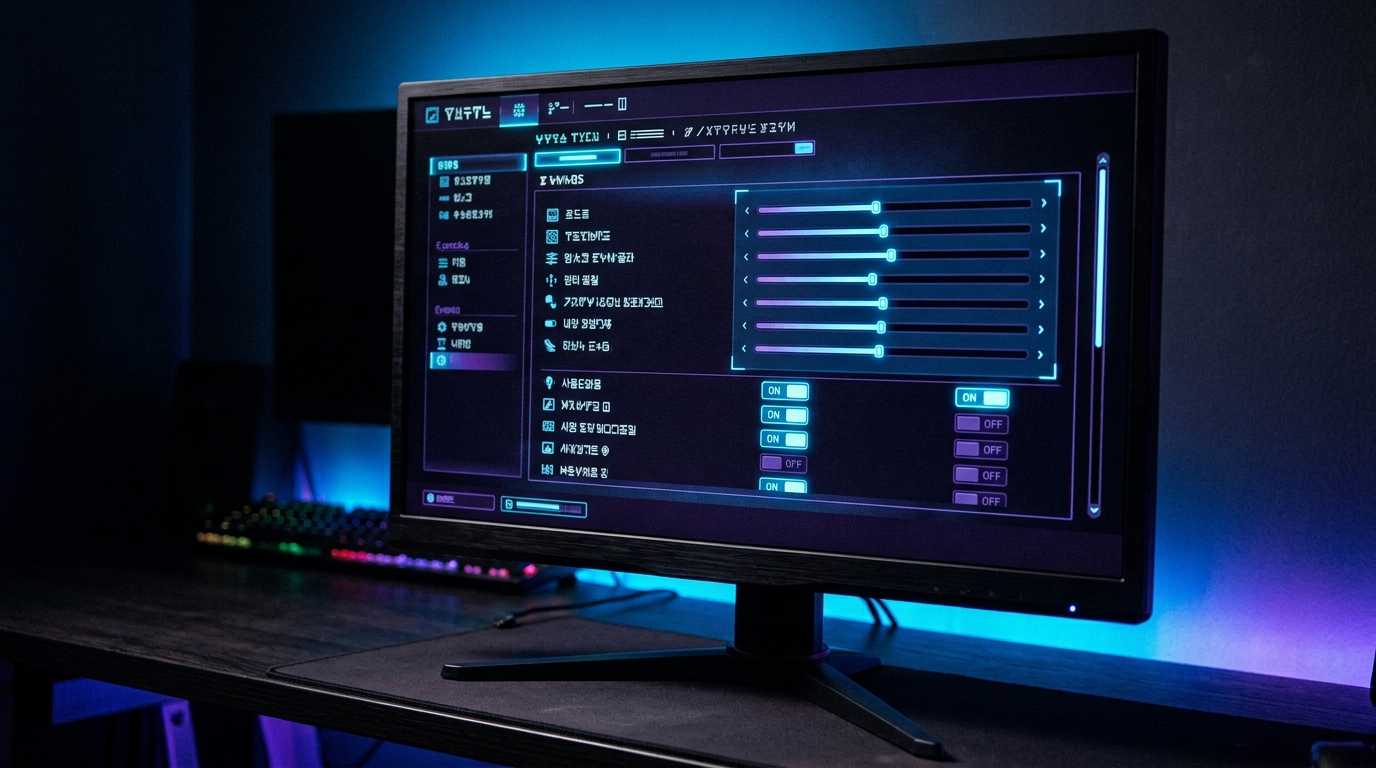
Start with native resolution if your PC can handle it. Native resolution usually gives the cleanest image because the game matches your monitor’s actual pixel count. If performance is too low, do not immediately drop to a much lower screen resolution. Try render scaling, DLSS, FSR, XeSS, or in-game dynamic resolution first.
NVIDIA DLSS, AMD FSR, and similar technologies are useful because they render at a lower internal resolution and reconstruct or upscale the final image. NVIDIA explains that DLSS uses AI rendering technologies to boost FPS, reduce latency, and improve image quality. AMD describes FSR upscaling as a technology that reconstructs visuals from lower-resolution frames, with frame generation available in supported titles. You can learn more from the official NVIDIA DLSS page and the official AMD FSR page.
Use native resolution first, then Quality upscaling
If your game supports DLSS, FSR, or XeSS, start with the Quality mode. Quality mode usually gives the best balance because it improves FPS while keeping the image sharper than Performance mode. Balanced mode can work well at higher resolutions. Performance mode is better when you really need extra frames, but it may introduce softness or artifacts depending on the game.
For 1080p gaming, be careful with aggressive upscaling because the source image is already smaller. At 1440p and 4K, upscaling often works better because there is more pixel data to reconstruct. If the game looks blurry, check sharpening, motion blur, film grain, and anti-aliasing settings before blaming upscaling alone.
Use frame generation carefully
Frame generation can make motion look smoother in supported games, but it is not a magic fix for bad base performance. If your real FPS is too low, generated frames may not solve input feel. Frame generation is best when your base frame rate is already decent and you want smoother visual motion, especially in single-player games.
For competitive shooters, racing, and games where reaction time matters, prioritize low latency and real rendered frames. For cinematic single-player games, frame generation can be a strong option when used with sensible settings.
Build a Smart FPS Preset Instead of Using Low Settings
Using the Low preset is fast, but it is usually not the best choice. Low presets often reduce settings that barely affect performance while damaging the look of the game. A custom preset gives better results. Keep the settings that protect clarity, then reduce the settings that cost the most frames.
A strong starting point for many games is: textures on High if you have enough VRAM, shadows on Medium, reflections on Medium or Low, volumetric effects on Low or Medium, ambient occlusion on Medium, motion blur off, film grain off, chromatic aberration off, ray tracing off unless your GPU can handle it, and upscaling set to Quality or Balanced if needed.
This approach keeps the game sharp while cutting expensive effects. It also makes your settings easier to troubleshoot. If FPS still drops, lower shadows, volumetrics, crowd density, view distance, and ray tracing before you lower textures or resolution.
Graphics settings that usually cost the most
Shadows, ray tracing, reflections, volumetric fog, global illumination, and high view distance are usually expensive. These settings can look great, but they often hurt performance more than players expect. Open-world games are especially sensitive because they render large areas, many lights, distant objects, weather effects, and NPC activity.
Texture quality is different. If your GPU has enough VRAM, high textures can look much better without a huge FPS cost. If your GPU runs out of VRAM, though, you may see stutters, texture pop-in, or heavy frame drops. That is why textures should match your GPU memory instead of being lowered blindly.
Lower shadows, reflections, and volumetrics first
If you need a quick FPS boost, lower shadows from Ultra to High or Medium. This often gives a strong gain without making the game ugly. Next, reduce reflections and volumetric effects. In many games, Ultra reflections and fog look nice in screenshots but are not worth the performance cost during normal gameplay.
Ray tracing should be treated as a luxury setting. It can improve lighting and reflections, but it should not come before smooth gameplay. If your FPS is unstable, disable ray tracing first, then use screen-space reflections or traditional lighting options instead.
System settings also affect smoothness
Game settings matter most, but Windows settings can also help. Make sure your graphics drivers are current, close heavy background apps, and check that your PC is using the right power mode while gaming. Microsoft says Windows power mode lets users choose between better battery life, better performance, or a balanced experience, and its performance guidance notes that Best performance can help the CPU run at higher performance when needed.
Windows 11 also includes optimizations for windowed games. Microsoft explains that these optimizations can improve performance for DirectX 10 and DirectX 11 games running in windowed or borderless windowed modes by using a newer presentation model and enabling features like Auto HDR and variable refresh rate on supported displays. You can review Microsoft’s official page on Optimizations for windowed games in Windows 11.
Cap FPS for smoother gameplay
More FPS is not always better if the frame rate is unstable. A frame cap can make gameplay feel smoother because your GPU is not constantly bouncing between high and low output. If your game jumps between 70 and 110 FPS, try capping it at 60, 75, 90, or 100 depending on your monitor. Stable frame pacing can feel cleaner than a higher but messy average FPS.
Also check V-Sync, G-Sync, FreeSync, and in-game frame limiter options. For many players, variable refresh rate plus a sensible FPS cap gives a smoother experience than leaving everything uncapped. Competitive players may prefer lower latency settings, but casual players often benefit from stability.
The best PC settings to boost FPS are not about making games ugly. They are about choosing the right trade-offs. Keep resolution and textures as high as your system can handle. Use Quality upscaling before dropping resolution too far. Lower shadows, reflections, volumetrics, and ray tracing when performance struggles. Turn off motion blur, film grain, and chromatic aberration if you want a cleaner image.
Most importantly, test one change at a time. Use the same area of the game, watch average FPS and stutter, then decide whether the visual loss is worth the gain. A smart custom preset can make your PC feel faster without destroying the look of your favorite games.
For more Progz optimization guides, browse PC Gaming, Game Guides, Reviews, and Gaming Gear.